

The Woo MCP tab (under AI Assistant → Woo MCP in the left sidebar) lets you connect a desktop AI client through WooCommerce’s own MCP integration instead of your TrackShip link. Connected this way, the AI gets WooCommerce’s core tools (orders, products, customers) plus all the TrackShip tools in a single connection.
A WooCommerce API key opens your whole store — orders, products and customers — because the key belongs to WooCommerce and its scope cannot be narrowed. Treat it like a server password. Store it securely, never share it, and delete it in WooCommerce if it is exposed. If you only need tracking access, use your TrackShip link instead: it reaches TrackShip and nothing else, and each person can be revoked on their own.
Requires WordPress 6.9 or newer and WooCommerce with the MCP integration feature switched on. To enable it, go to WooCommerce → Settings → Advanced → MCP.
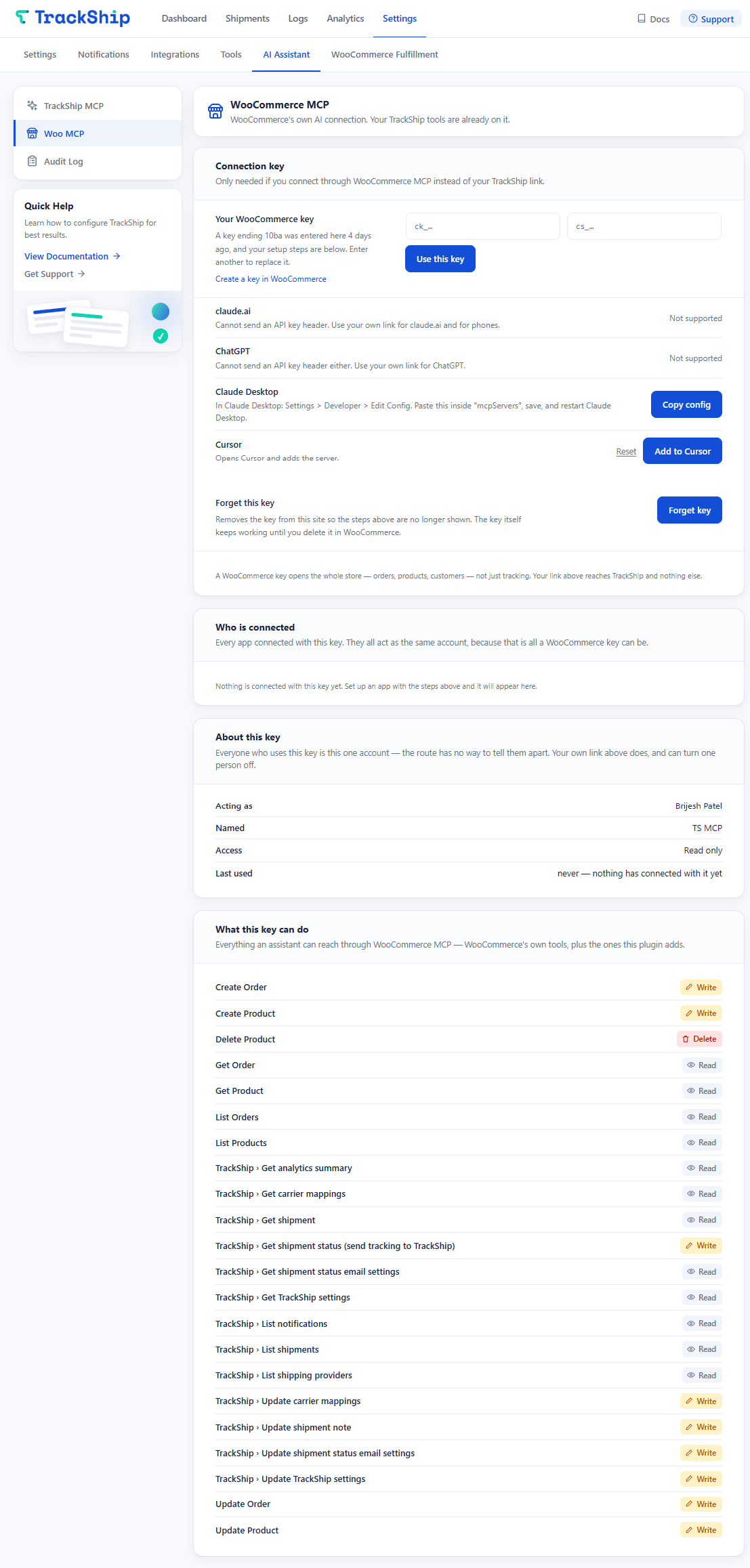
Set up the connection key
This route authenticates with a WooCommerce REST API key.
- Press Create a key in WooCommerce to open the API key screen (or go to WooCommerce → Settings → Advanced → REST API).
- Give the key a name, select a user, and set Permissions. Read/Write is required for the tools that change settings, mappings or notes. Read only is enough if you just want to look things up.
- Press Generate API key. Copy both the Consumer Key (ck_…) and the Consumer Secret (cs_…) immediately — the secret is shown only once.
- Back on the Woo MCP screen, paste the Consumer Key into the ck_ field and the Consumer Secret into the cs_ field, then press Use this key.
Connecting AI clients
Once the key is saved, the screen shows the setup for each client:
- Claude Desktop — press Copy config, then in Claude Desktop go to Settings → Developer → Edit Config, paste the block inside
mcpServers, save, and restart Claude Desktop. - Cursor — press Add to Cursor, which opens Cursor and adds the server.
- claude.ai and ChatGPT — not supported on this route, because they cannot send an API key header. Use your TrackShip link for those, and from a phone.
Claude Desktop and Cursor run this connection through npx mcp-remote, so Node.js must be installed on that computer. Without it the app reports spawn npx ENOENT and the server shows as Failed.
Who is connected
The Who is connected table lists every AI client currently using this key, with Acting as, App, Connected, Last used and Status. Because a WooCommerce key belongs to one account, every connection acts as that same account.
Individual connections cannot be revoked one at a time — each holds the same key and would simply open a new session on its next request. Use Delete this key to end all access at once. A new key must be created and saved to reconnect.
Forget key vs Delete this key
| Action | What it does |
|---|---|
| Forget key | Removes the key from TrackShip’s settings so the setup steps are hidden. The key itself keeps working in WooCommerce — it is not deleted and can still be used. Use this to tidy up after switching to a different key. |
| Delete this key | Ends all active connections using this key immediately. No AI client using it can make further requests. Create and save a new key to reconnect. |
About this key
- Acting as — the WooCommerce account the key belongs to.
- Named — the key’s description as set in WooCommerce.
- Access — its permission level (Read only, or Read and write).
- Last used — how long ago the key last made a request.
What this key can do
Everything reachable through WooCommerce MCP — WooCommerce’s own tools, plus the TrackShip tools. See What the AI Can Do (Tools) for what each TrackShip tool accepts and returns:
| Tool | Type | Description |
|---|---|---|
| woocommerce-orders-get | Read | Get a single order by ID |
| woocommerce-orders-list | Read | List orders with filters |
| woocommerce-orders-create | Write | Create a new order |
| woocommerce-orders-update | Write | Update an order |
| woocommerce-products-get | Read | Get a single product |
| woocommerce-products-list | Read | List products with filters |
| woocommerce-products-create | Write | Create a new product |
| woocommerce-products-update | Write | Update a product |
| woocommerce-products-delete | Delete | Delete a product |
| trackship-list-shipments | Read | List shipments with filters |
| trackship-get-shipment | Read | One order’s shipment and its tracking history |
| trackship-list-notifications | Read | Shipment emails and SMS sent, with the result |
| trackship-get-analytics-summary | Read | Shipping and delivery metrics for a period |
| trackship-list-providers | Read | Supported carriers and their slugs |
| trackship-get-settings | Read | Your TrackShip settings |
| trackship-get-email-settings | Read | Shipment status email settings |
| trackship-get-carrier-mappings | Read | Your carrier name mappings |
| trackship-update-settings | Write | Change whitelisted TrackShip settings |
| trackship-update-email-settings | Write | Change email content and design for one status |
| trackship-update-carrier-mappings | Write | Add, update or remove carrier mappings |
| trackship-update-shipment-note | Write | Add, replace or clear a shipment’s internal note |
| trackship-resync-shipments | Write | Send tracking to TrackShip and refresh the shipment |
No TrackShip tool deletes anything.
Troubleshooting
- Key rejected, or a 401 error — confirm the Consumer Key is in the ck_ field and the Consumer Secret in the cs_ field, not swapped. Both must be filled before pressing Use this key.
- spawn npx ENOENT — Node.js is not installed on that computer. Install it from nodejs.org, then quit Claude Desktop completely and open it again.
- Tools missing after restarting Claude Desktop — open the config file and confirm the block was pasted inside the
mcpServersobject, not outside it. Restart again after correcting it. - WooCommerce MCP feature not available — it needs WordPress 6.9 or newer. Update, then enable it under WooCommerce → Settings → Advanced → MCP.
More problems and fixes are listed in Troubleshooting the AI Assistant.