

The Audit Log (under AI Assistant → Audit Log in the left sidebar) records every action taken by an AI assistant — with the result and any error — so you always have a complete, reviewable history. Go to TrackShip → Settings → AI Assistant → Audit Log.
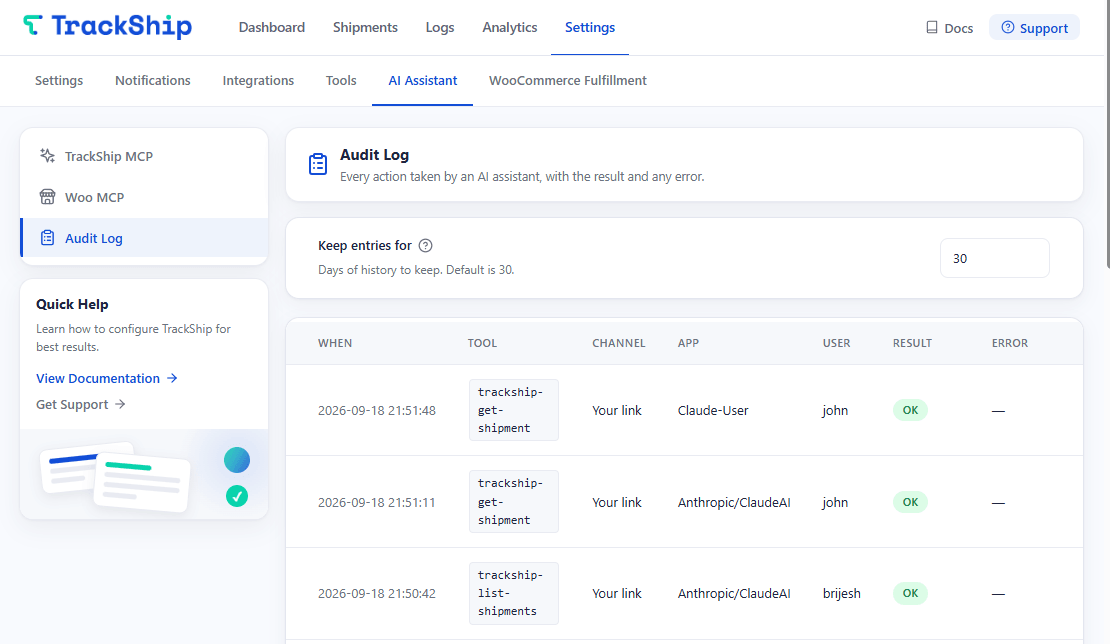
What each column means
- When — the date and time the action ran, in your store’s timezone.
- Tool — the action called, shown as its code name (for example,
trackship-list-shipmentsortrackship-update-shipment-note). - Channel — which route was used: your TrackShip link, or WooCommerce MCP.
- App — the AI client that made the request (for example, Claude, claude-code or cursor-vscode).
- User — the store account the assistant was acting as, shown as the WordPress username.
- Result — OK means the tool ran and returned data. Refused means the call reached the plugin but was blocked or failed; the Error column says why.
- Error — the reason a call did not succeed. Hover a shortened entry to see the full message.
The log shows 50 entries per page, newest first. Use the page controls at the bottom to reach older entries.
Retention and storage
At the top of the Audit Log screen is Keep entries for (default: 30 days). Entries older than this are deleted automatically once a day through WP-Cron. On low-traffic sites WP-Cron can fire late — if you need reliable cleanup, set up a server-level cron job.
Set it to 0 to keep entries indefinitely. On busy stores that lets the log grow steadily, so choose a retention window that suits how much history you actually review.
Entries are stored in a table of TrackShip’s own in your WordPress database, separate from your orders and shipments.
Privacy note: the Audit Log records WordPress usernames and the tool calls made on behalf of each user. If several people connect AI assistants, their activity is visible to anyone who can open this screen (Administrator or Shop manager).
Troubleshooting: the log is empty but the AI says it worked
If a tool call appears to succeed in the chat but no entry appears here:
- Confirm the assistant is connected to this store’s link. A connector still pointing at an old address, or at a different site, never reaches this plugin.
- Check Keep entries for. If it is set very low, older entries from the same day may already have been removed.
- Set retention to 0 temporarily and repeat the action, to see whether the entry is written at all.
- If nothing is written even then, the call is not reaching the plugin. Use Test my link in Enable & Configure to check the endpoint is reachable, then see Troubleshooting.